
जबकि मल्टीलिपि का एआई भारी काम संभालता है, एक सुसंगत ब्रांड आवाज़ बनाए रखने के लिए मानवीय स्पर्श की आवश्यकता होती है। चाहे आपको किसी तकनीकी शब्द को ठीक करने की आवश्यकता हो या किसी विशिष्ट बाज़ार के लिए टोन को समायोजित करने की आवश्यकता हो, मल्टीलिपि आपकी सामग्री को प्रबंधित करने के लिए दो शक्तिशाली इंटरफ़ेस प्रदान करती है: मैन्युअल संपादक (थोक अपडेट के लिए) और विज़ुअल एडिटर (ऑन-पेज संदर्भ के लिए)।
दोनों विधियाँ आपको अपने लाइव साइट पर परिवर्तनों को तुरंत संपादित, परिष्कृत और प्रकाशित करने की अनुमति देती हैं।
मैन्युअल संपादन क्यों मायने रखता है
AI अनुवादों को परिष्कृत करने से ब्रांड स्थिरता बनाए रखने, तकनीकी शब्दावली को ठीक करने, स्थानीय SEO कीवर्ड को अनुकूलित करने और बाज़ारों में सांस्कृतिक प्रासंगिकता सुनिश्चित करने में मदद मिलती है।
विधि 1: मैनुअल एडिटर (थोक प्रबंधन)
इसके लिए सर्वश्रेष्ठ: टेक्स्ट सूचियों की तेज़ी से समीक्षा करना, शब्दावली को ठीक करना, और SEO कीवर्ड को अनुकूलित करना।
मैनुअल एडिटर आपके स्रोत और अनुवादित टेक्स्ट का एक सुव्यवस्थित, अगल-बगल का दृश्य प्रदान करता है, जिससे सामग्री का कुशलतापूर्वक ऑडिट करना आसान हो जाता है।
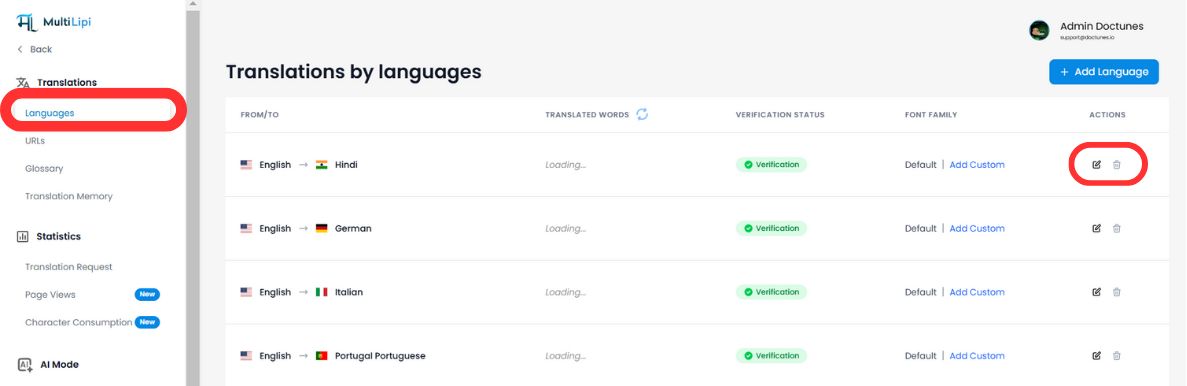
चरण 1: प्रोजेक्ट डैशबोर्ड एक्सेस करें
अपने मल्टीलिपि डैशबोर्ड में लॉग इन करें और प्रोजेक्ट्स साइडबार पर। वह विशिष्ट डोमेन चुनें जिसे आप प्रबंधित करना चाहते हैं।
चरण 2: लक्ष्य भाषा का चयन करें
उस भाषा को चुनें जिसे आप संपादित करना चाहते हैं (जैसे, "फ़्रेंच")। सिस्टम आपकी साइट पर पाए जाने वाले सभी टेक्स्ट स्ट्रिंग्स की पूरी सूची उनके वर्तमान अनुवादों के साथ लोड करेगा।
चरण 3: सामग्री संपादित करें
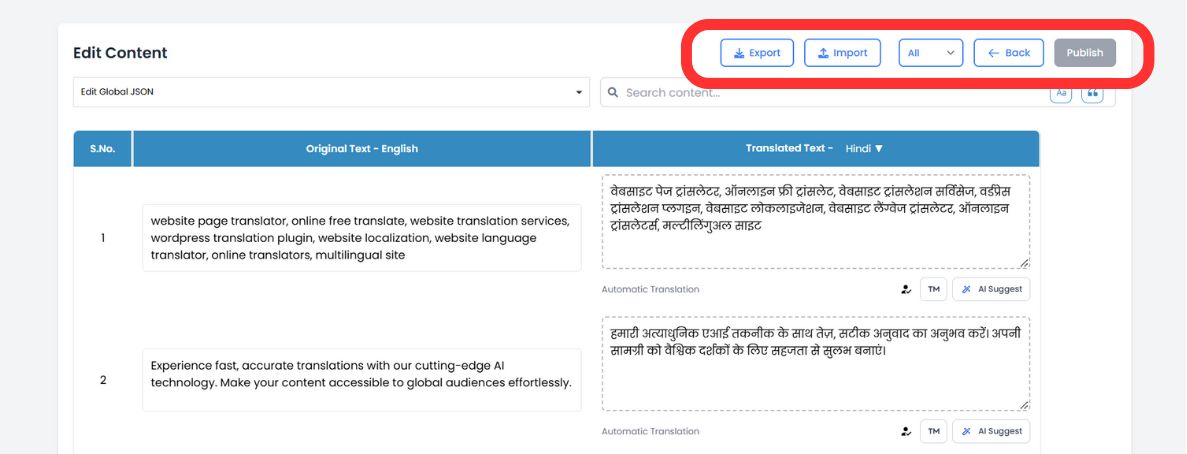
पाठ को संशोधित करने के लिए किसी भी अनुवाद बॉक्स के अंदर क्लिक करें। आप ध्यान देने योग्य विशिष्ट वाक्यांशों, उत्पाद नामों या शीर्षकों को तुरंत खोजने के लिए शीर्ष खोज बार का उपयोग कर सकते हैं।
चरण 4: AI सुझावों का लाभ उठाएं (नया)
जैसे ही आप संपादन करते हैं, हमारा AI इंजन अब आपके टेक्स्ट का वास्तविक समय में विश्लेषण करता है। प्रत्येक फ़ील्ड के नीचे देखें स्मार्ट सुझाव पठनीयता और एसईओ प्रदर्शन को बेहतर बनाने के लिए तैयार किया गया।
एक-क्लिक प्रतिस्थापन
यदि AI बेहतर वाक्यांश का सुझाव देता है (या आपके शब्दावली से किसी शब्द का मिलान करता है), तो बस सुझाव पर क्लिक करके उसे तुरंत संपादक फ़ील्ड में स्वैप करें।
चरण 5: प्रकाशित करें
संतुष्ट होने के बाद, ऊपर-दाएँ कोने में प्रकाशित करें बटन पर क्लिक करें। आपके अपडेट तुरंत वैश्विक नेटवर्क पर धकेल दिए जाते हैं।
विधि 2: विज़ुअल एडिटर (इन-कॉन्टेक्स्ट समीक्षा)
इसके लिए सर्वश्रेष्ठ: UI/UX समायोजन, विपणन प्रतिलिपि, और लेआउट ब्रेक को ठीक करना।
संदर्भ सब कुछ है। विज़ुअल एडिटर आपको अपनी वास्तविक वेबसाइट ब्राउज़ करने और स्क्रीन पर सीधे अनुवाद संपादित करने देता है, यह सुनिश्चित करता है कि आपका टेक्स्ट आपके डिज़ाइन में पूरी तरह से फिट बैठता है।
चरण 1: इंटरफ़ेस लॉन्च करें
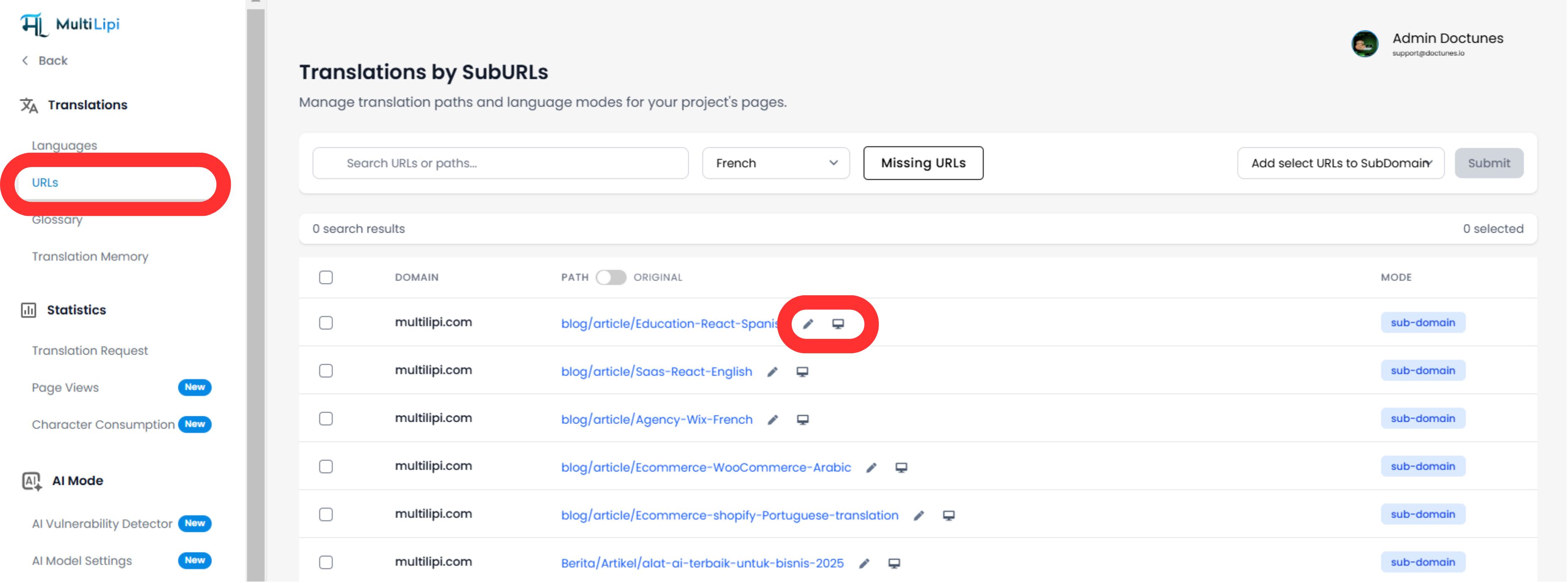
नेविगेट करें अनुवाद > यूआरएल डैशबोर्ड साइडबार में। आपको अनुक्रमित सभी पृष्ठों की सूची दिखाई देगी।
चरण 2: लाइव व्यू खोलें
पर क्लिक करें विजुअल एडिटर आइकन (🖥️) उस पृष्ठ के बगल में जिसे आप संपादित करना चाहते हैं। यह चयनित भाषा में आपकी साइट का एक लाइव, इंटरैक्टिव पूर्वावलोकन खोलता है।
चरण 3: क्लिक-टू-एडिट
इनलाइन संपादक खोलने के लिए बस किसी भी टेक्स्ट तत्व पर क्लिक करें—हेडलाइंस, बटन या पैराग्राफ।
रीयल-टाइम लेआउट जांच
तुरंत देखें कि कोई अनुवाद बहुत लंबा है और आपके डिज़ाइन को तोड़ता है।
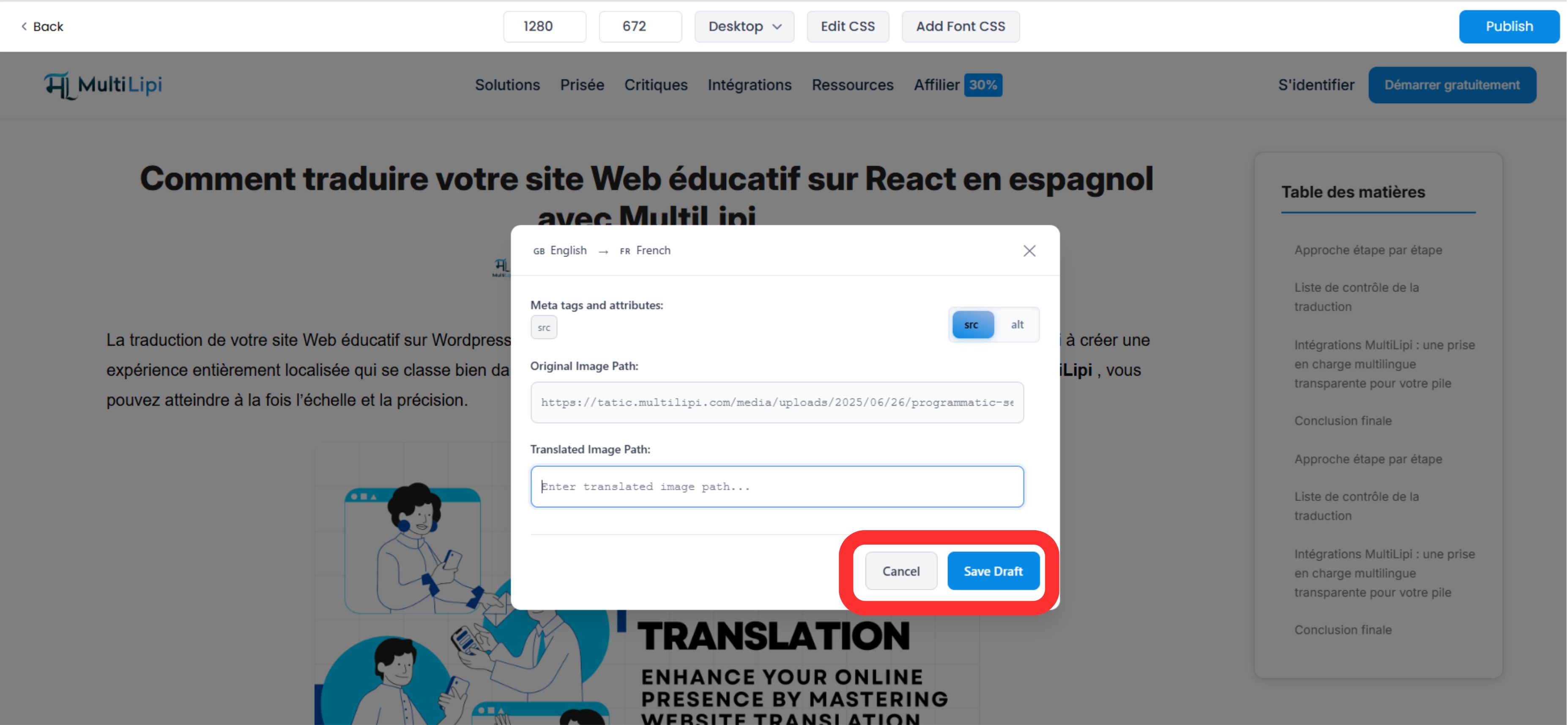
छवि SEO
Google Images में उस क्षेत्र के लिए अपनी दृश्यता बढ़ाने के लिए, सीधे Alt Tags का अनुवाद करने के लिए छवियों पर क्लिक करें।
चरण 4: AI सुधार लागू करें
विज़ुअल एडिटर में अब उन्नत संदर्भ उपकरण शामिल हैं:
- •टोन स्लाइडर्स: औपचारिकता को समायोजित करें (जैसे, पेशेवर बनाम मैत्रीपूर्ण) और AI को इसे लिखने दें।
- •गलत संरेखण का पता लगाना: सिस्टम स्वचालित रूप से उस कॉपी को फ़्लैग करता है जो टूटी हुई या गलत संरेखित दिख सकती है।
चरण 5: प्रकाशित करें
क्लिक करें प्रकाशित करें अपने परिवर्तनों को लाइव करने के लिए। आप पृष्ठ छोड़े बिना अन्य क्षेत्रों के लिए प्रक्रिया को दोहराने के लिए शीर्ष ड्रॉपडाउन के माध्यम से भाषाओं को स्विच कर सकते हैं।
विकास के लिए यह क्यों मायने रखता है
संपादन केवल त्रुटियों को ठीक करने के बारे में नहीं है; यह एक रूपांतरण रणनीति.
विश्वास संकेत
चेकआउट बटन में व्याकरण संबंधी त्रुटि बिक्री को रोक सकती है। एक त्वरित मैनुअल समीक्षा सुनिश्चित करती है कि आपके "मनी पेज" (मूल्य निर्धारण, चेकआउट) मूल और भरोसेमंद महसूस हों।
एसईओ अथॉरिटी
उच्च-मात्रा वाले स्थानीय कीवर्ड डालने के लिए मैन्युअल एडिटर का उपयोग करना (जैसे, जर्मनी के लिए "Cell Phone" को "Handy" में बदलना) आपकी स्थानीय खोज रैंकिंग में काफी सुधार कर सकता है।
💡 प्रो टिप: अपने वर्कफ़्लो में दोनों संपादकों को मिलाएं। थोक शब्दावली सुधारों और एसईओ अनुकूलन के लिए Manual Editor का उपयोग करें, फिर यह सत्यापित करने के लिए Visual Editor पर स्विच करें कि परिवर्तन आपके वास्तविक डिज़ाइन लेआउट में सही दिखते हैं।